
Drag
Add panels, battens, profiles and basic shapes and pull their handles into shape. Or let a wizard build the whole cabinet – panel by panel, each one editable on its own.

PlanBeaver is 3D design for people who build things themselves. Sketch the idea, drag parts, type sizes – and the app hands you what you need in the workshop: cut list, sheet layout, drilling plan, saw list, DXF and 3MF.

 In testing – coming soonSoon on Google Play
For iPhone and iPadSoon on the App Store
See it in action
App Store: coming soon in the EU – already available in the UK, the US, Switzerland and many other countries.

As easy as building blocks – but what you get at the end isn't a colourful toy, it's a list you can take to the saw.
Add panels, battens, profiles and basic shapes and pull their handles into shape. Or let a wizard build the whole cabinet – panel by panel, each one editable on its own.
Do the maths right in the size field: 600-2*18, 3/4 in or your own variables such as thickness.
Change a value and everything follows – including the dimensions in the model.

Cut list, sheet layout, drilling plan and assembly steps come straight from the model. No copying, no miscalculating – and a workshop mode where you tick off parts as you cut them.

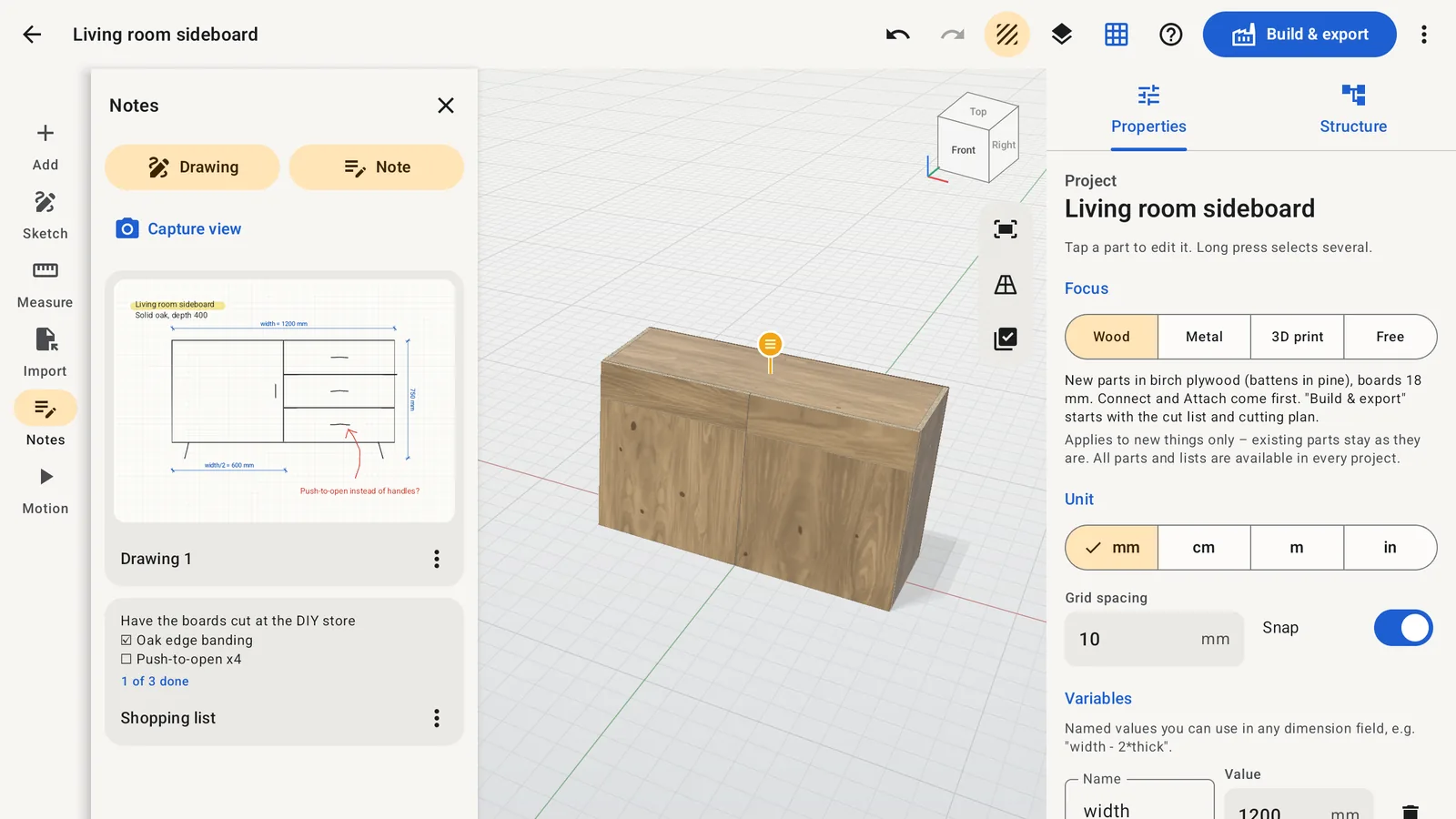
Every project has a notebook: drawings, notes and checklists right next to the 3D model. You capture the idea like on a scrap of paper in the workshop – except that one tap turns the sketch into a part.
600-2*18. width = 800 becomes a variable for the whole project.Ideas are free and unlimited: an idea without parts doesn't count towards the 3 free projects.
Real recordings from the app on a tablet – no animation on top, just played a little faster.
Every project has a focus – wood, metal or 3D printing. PlanBeaver then shows exactly the tools, lists and exports that go with it.
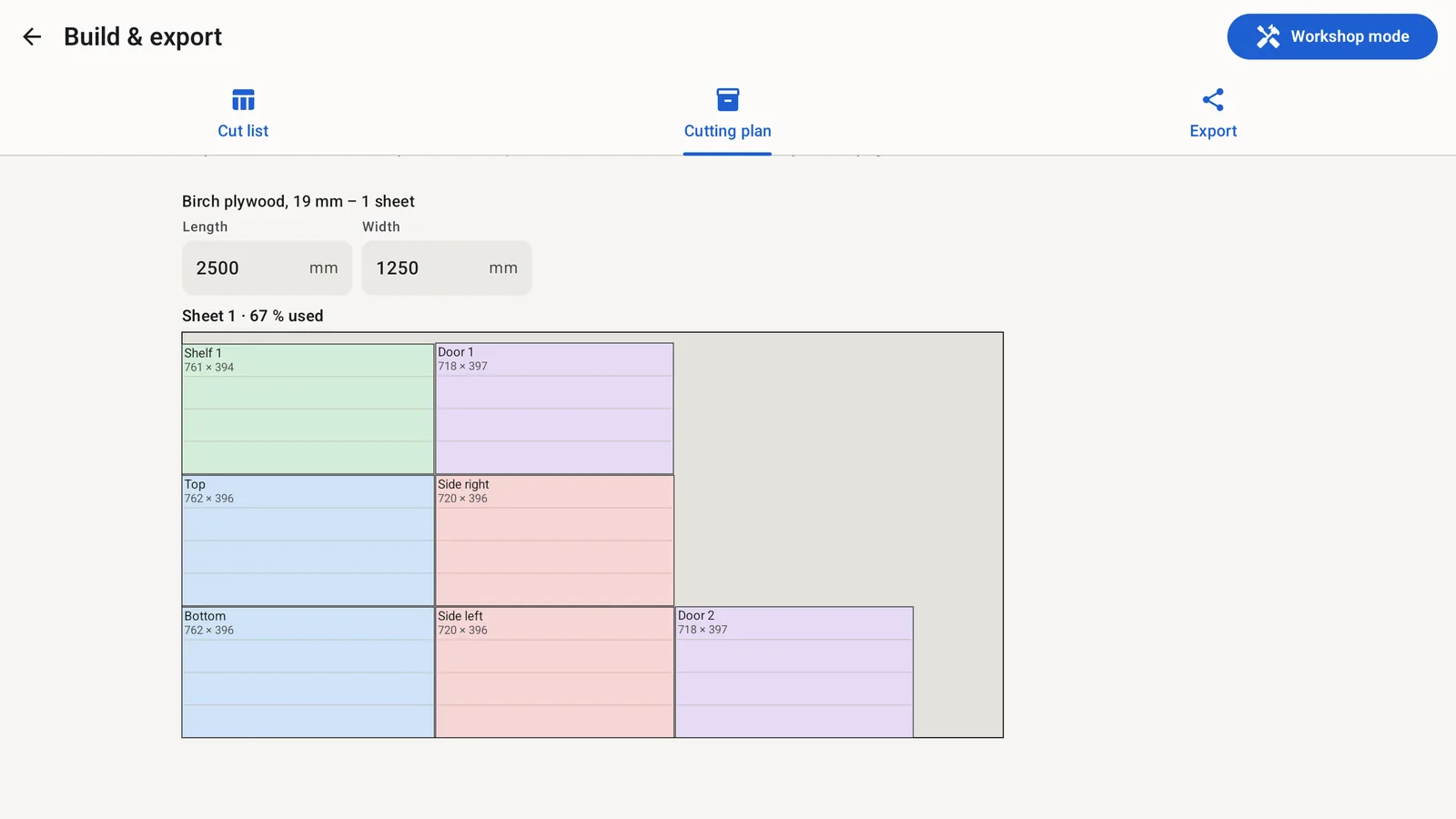
Cabinet, shelf, sideboard, table: you set the outside size, PlanBeaver builds it panel by panel – and does the maths the way you would in the workshop.
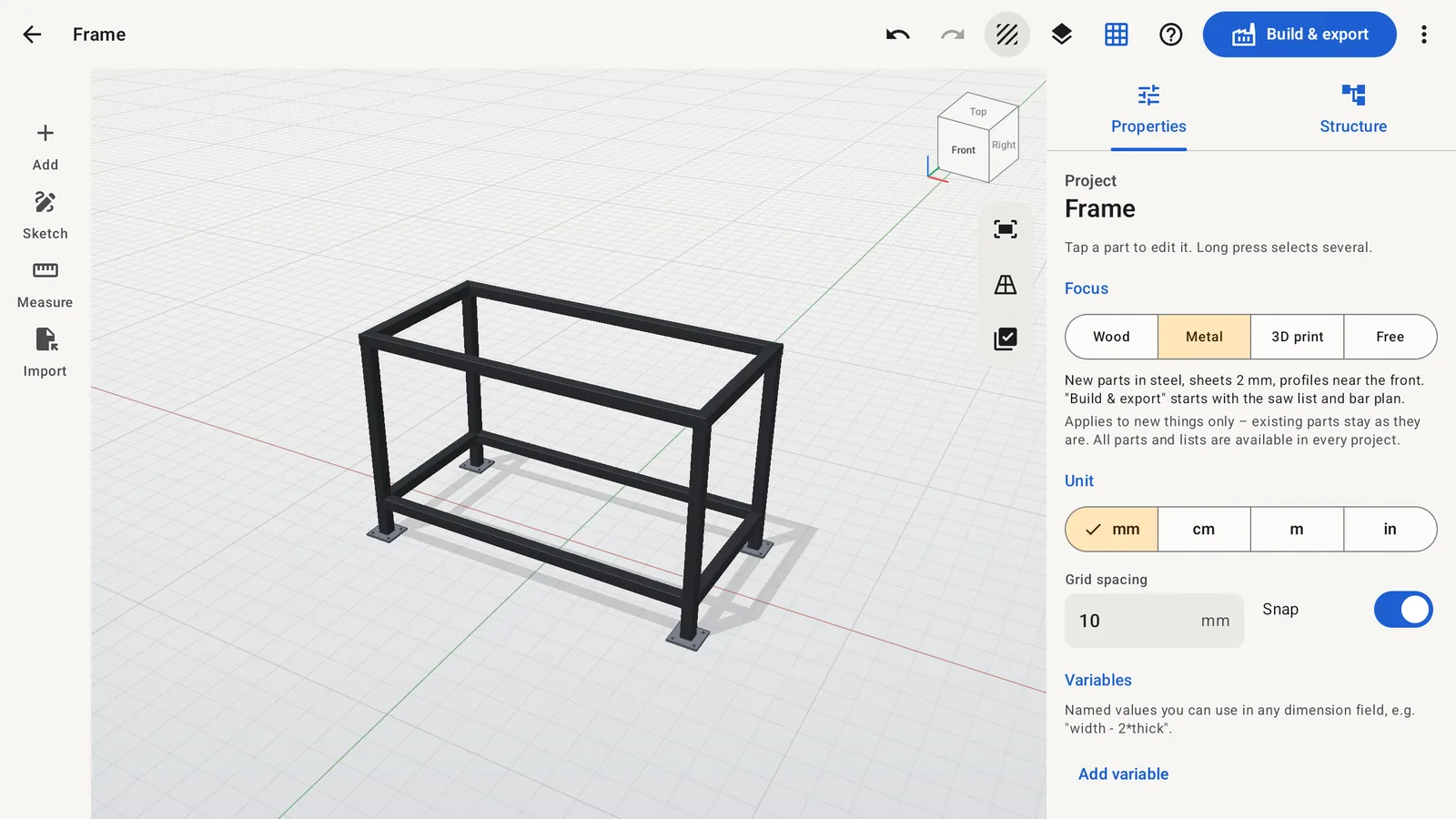
From a table frame to a workshop rack: profiles in standard sizes, clean mitres and a saw list that includes the angles.

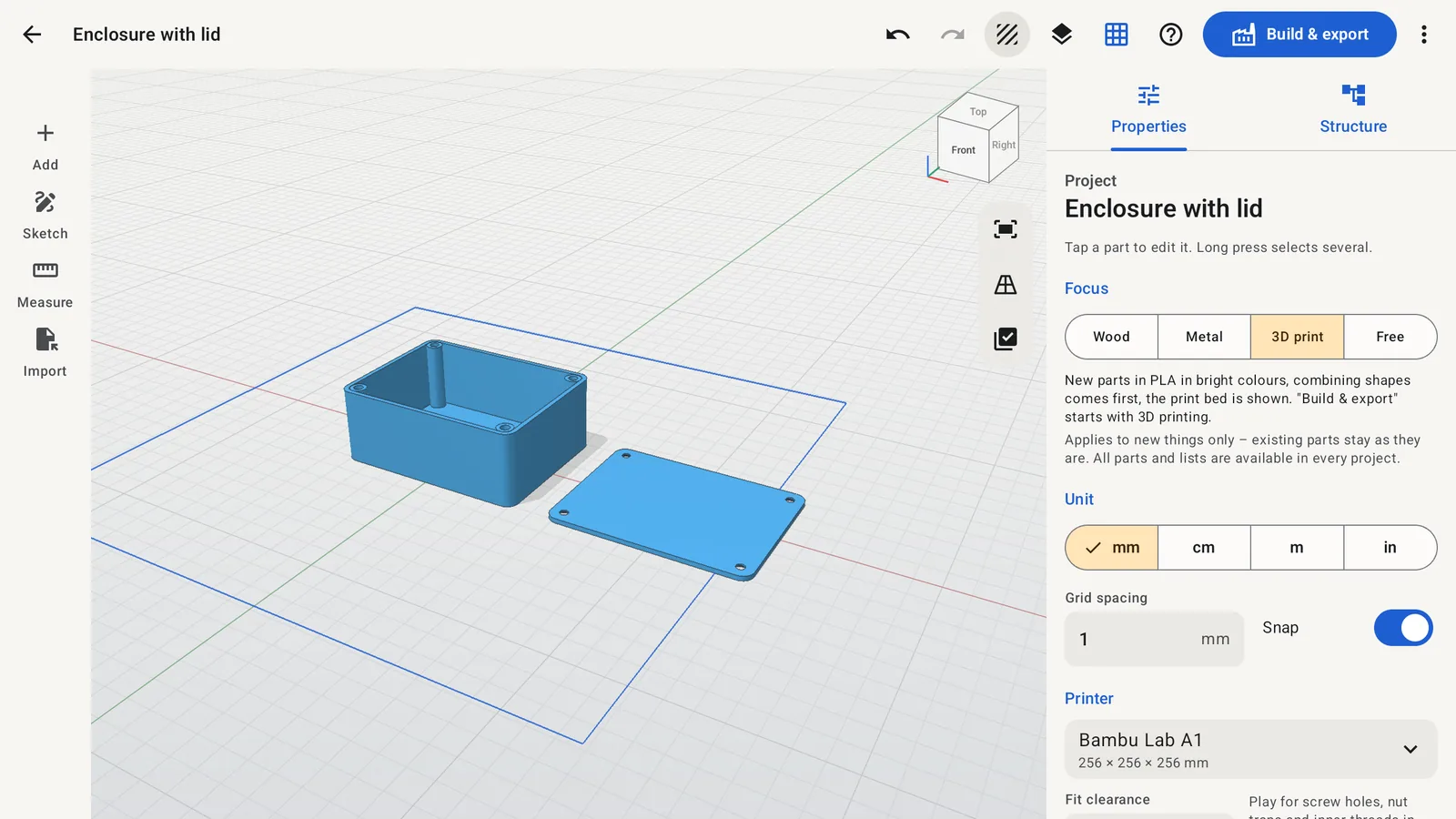
Threads, clearances, nut traps: what usually turns into guesswork in the slicer, you plan here with real sizes – and check before the printer starts.
Most 3D apps stop when the model is done. That's where PlanBeaver gets going. The cut list is always free, everything else is part of Premium – free to try for 14 days.
Every part with finished and cutting size, edge banding, mitres, grain direction and hardware. As CSV (with Premium) straight for the cutting service at the DIY store.
Parts placed on stock sheets per material, with kerf and the share of the sheet used.
Lengths with mitre angles, sorted onto stock bars – less waste.
Views with dimensions, parts list, sheet layouts, drilling plans and assembly steps in one document.
Every panel with all holes and a hole table – also right at the saw on your tablet.
Steps with pictures, which parts come in and what to do.
Large type for a glance from the bench: tick off cut parts and finished steps.
One sticker per part with name, size, material and "2 / 4" – A4 with 3 × 8 labels.
Outlines of all panels and sheets for laser, plasma and CNC – sheet metal unfolded.
For the slicer with colours and several objects, for Blender and other 3D programs.
Estimates for filament and print time, plus the best orientation on the bed.
Camera moves around the model, doors opening, exploded view – landscape, square or portrait for Reels.
Material, hardware and accessories with guide prices – enter your own prices if you like.
For those who want the details: the toolbox at a glance.
3/4 in.planbeaver file3D block apps are quick to learn but don't give you a cut list. Professional CAD does everything but takes weeks. PlanBeaver sits right in between.
| Feature | 3D block apps | Professional CAD | |
|---|---|---|---|
| Works with your finger, learned in minutes | ✓ | – | ✓ |
| Sizes with formulas and variables | – | ✓ | ✓ |
| Wizards for cabinet, table, frame, enclosure | – | ~ | ✓ |
| Cut list and sheet layout from the model | – | ~ | ✓ |
| Wood joints, drilling plan, assembly steps | – | ~ | ✓ |
| Print check, threads, 3MF with colours | ~ | ~ | ✓ |
| DXF for laser, plasma and CNC | ~ | ✓ | ✓ |
| Fully offline, no account | ~ | ~ | ✓ |
✓ yes · ~ partly, depending on the product or with an add-on · – no. Typical traits of each category; individual products may differ.
PlanBeaver has no permission to access the internet – the app itself sends nothing online. Only buying Premium goes through Google's Play Store app. No account, no tracking, no ads. Your projects live on your device, and you share them only if you want to: as a file.
Which also means: it works in the garage, the basement and on site, without any Wi-Fi.
In the first 14 days after installing you can try Premium for free – no subscription and no payment details.
No. PlanBeaver is made for people who learned to build, not to do CAD. A tour shows every button, in the guided project you build a box once, and the help explains everything in workshop language – "mitre" rather than "45° chamfer on edge 3".
Yes. In every project's notebook you draw with your finger or with a pen such as the S Pen. As soon as PlanBeaver detects a pen, only the pen draws: your hand may rest on the screen, your finger moves and zooms, and holding the pen button erases. Hold the pen still at the end of a line and it turns into a clean shape – and "To 3D" turns drawn shapes into a part of the model.
On Android 10 and newer. PlanBeaver is made for tablets in landscape and also runs on phones. With a keyboard and mouse there are shortcuts, which also works on Chromebooks. There is currently no version for Windows.
For iPhone and iPad (iOS 16 and newer) PlanBeaver is coming to the App Store shortly.
On iPhone and iPad with iOS 16 and newer – get it on the App Store. In the EU it is coming to the App Store shortly.
Ideas with drawings and notes are free without limit. Planning with all shapes and wizards, the cut list and all checks are free, for up to 3 projects with parts. Premium unlocks the exports, sheet layout and bar plan, workshop mode and unlimited projects. You buy it once, there is no subscription; the Play Store shows you the price. In the first 14 days after installing you can try Premium for free.
Because everything is calculated on your device – including the 3D geometry, the sheet layout and the exports. We deliberately removed the internet permission from the app. That's why there is no account, no tracking and no advertising. Buying Premium is handled by the Play Store app on your device.
For 3D printing you export 3MF with several objects and colours (e.g. for Bambu Studio, PrusaSlicer or Orca) or STL. For laser, plasma and CNC there is DXF with the outlines of all panels and sheets, sheet metal unfolded with bend lines.
STL, OBJ and 3MF as a 3D model, SVG and DXF as an editable sketch – and of course PlanBeaver projects (.planbeaver)
someone sent you.
Yes. PlanBeaver knows mm, cm, m and inches, and in the size field you can mix and calculate: 3/4 in, 600-2*18
or your own variables.
PlanBeaver is currently in testing on Google Play and will be released shortly. Check back soon.
PlanBeaver is available on Google Play – here's the store page.
Write to support@martinellabs.com – or in the app via "Question or idea? Write to us". We read every message.

From the first line to the last board: PlanBeaver turns your idea into a list you can start working from.
In testing – coming soonSoon on Google Play
For iPhone and iPadSoon on the App Store
App Store: coming soon in the EU – already available in the UK, the US, Switzerland and many other countries.